
ODBC Connections
ODBC Connections allow users to view and edit database connections. ODBC associates a name with a particular database service and name. Client programs will try to connect to the database using the name.
Rather than creating ODBC Connections from scratch, you can load the details from a file generated from services. The following diagram shows the simplified workflow:
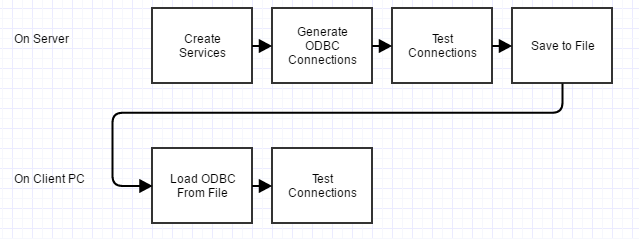
The Services screen can be used to save an ODBC Connection to a file, this file can then be loaded on client PCs.
The ODBC Connections screen has a list of connections in the grid, below the following buttons are available:
| Test Connection: | |
|---|---|
| Attempts to connect to the database to verify the connection details. | |
| New: | Create a new ODBC Connection. |
| Load from File: | Loads a connection based on details in a file, this can be used to load connection information from a computer that is working correctly. |
| Modify: | Edit the details of the selected connection. |
| Delete: | Remove the ODBC Connection from the system. |
ODBC Connection Edit
The edit screen has the following fields:
| Name: | The name given to the ODBC connection will be used by the client program for connecting to the database. |
|---|---|
| Description: | Optionally give a description for the connection. This description isn’t used by client programs. |
| Type: | A connection can be a SystemDSN or a UserDSN. A SystemDSN will be available to all users on the machine, while a user dsn is only visible by the current user. Typically you will create SystemDSN’s. UserDSN’s do not require higher system priviliges to create. On 64bit systems, you also have the option of creating DSN’s for 64bit or neutral archetictures. Normally you would create Neutral DSNs available for both 32 and 64 bit processes. A 64 bit DSN will not show up in client programs. |
| Server Name: | Note: this isn’t the Machine Name, rather, it is a name given to the database service in the Services screen. The connection process will attempt to find a database service with this name. |
| Start Line: | The start line will normally be blank. If a database isn’t running, this line can be used to tell the system how to start the database and which parameters to use. Normally, services are always running so this line is not necessary. |
| Database Name: | Together with the server name, the database name is used to identify which database running on the service to connect to. This is the name set on the Services screen. |
| Database File: | Normally this field will be blank. If a database isn’t running, the connection process can start a database running on the local machine. Normally database services are already running and do not need to be started. |
| Login Settings: | These fields specify how the ODBC Connection will authenticate with the database. The database has a global username and password used to connect to the database. This is separate from individual user accounts that log into the database. |
| Network Settings: | |
The following options are available:
|
|
| Start database automatically: | |
When a database is not running, this box will attempt to start the database usign the details in the database file and start line. This will have no effect on databases running on services, only if you want to run a database locally. |
|
| Stop database after last disconnect: | |
When running databases that are locally started, this option will allow the database to be stopped after no more connections are detected. |
|
The following buttons are available:
| Save: | Saves the details entered to the list of datasources available. |
|---|---|
| Save To File: | Saves the details of this ODBC conection to a file. This can be loaded on the another computer using the “Load from File” button on the ODBC List screen. |
| New: | Create a blank entry to enter a new connection. |
| Cancel: | Undo all changes and return to connection list screen. |